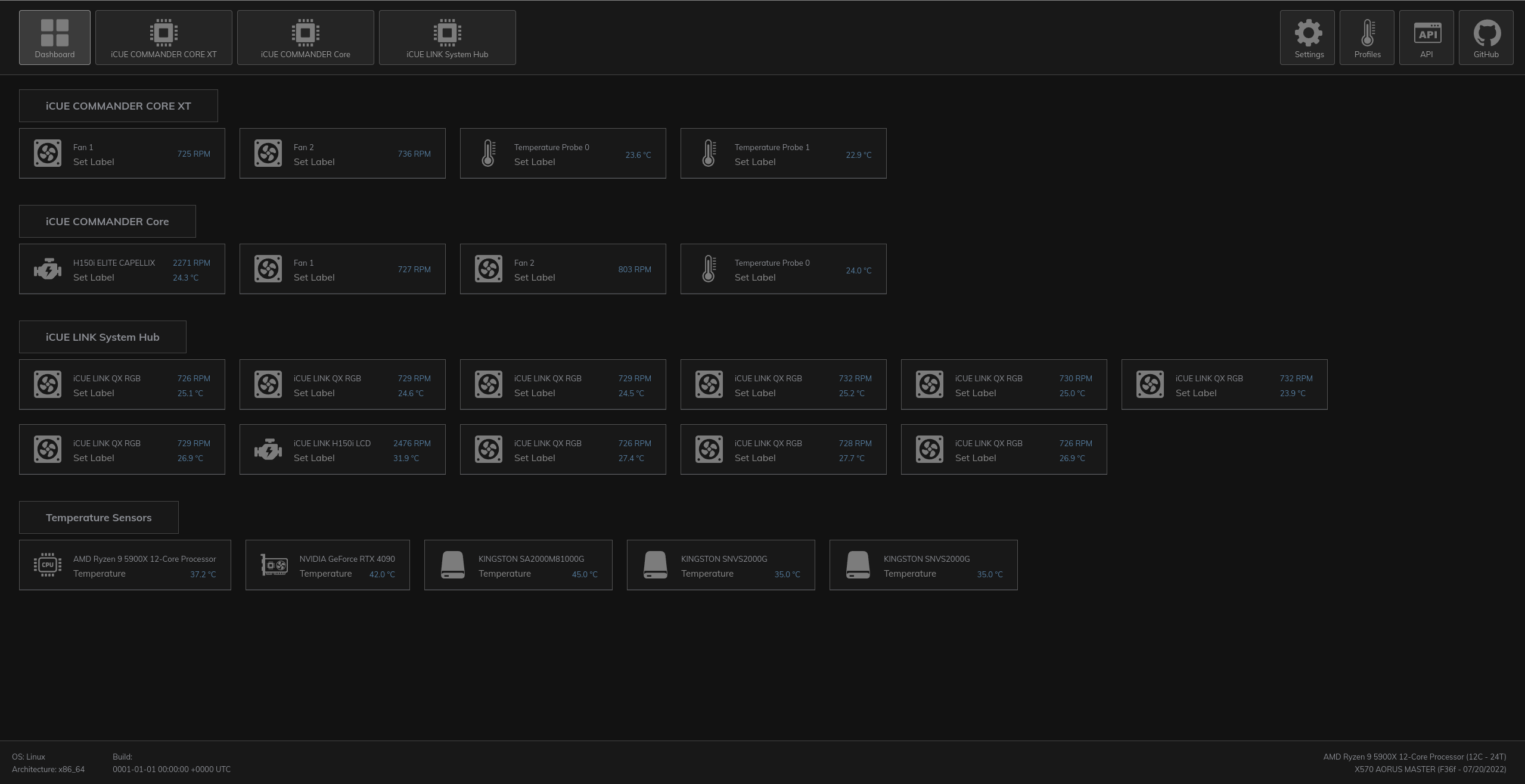
An open-source Linux interface for iCUE LINK Hub and other Corsair AIOs, Hubs. Manage RGB lighting, fan speeds, system metrics, as well as keyboards, mice, and headsets via a web dashboard.


Available in other languages: Portuguese (Brazil)
- Web-based UI accessible at
http://localhost:27003 - Control AIO coolers, fans, hubs, pumps, LCDs and RGB lighting
- Manage keyboards, mice and headsets
- Support for DDR4 and DDR5 memory
- Custom fan profiles, temperature sensors and RGB editor
- If you need system tray menu - https://github.com/jurkovic-nikola/openlinkhub-tray
- Supported device list
- This project was created out of necessity to control fans and pumps on workstations after switching everything to Linux.
- I take no responsibility for this code at all. Use this at your own risk.
- Most of the devices are actually tested on live hardware.
- Take care and have fun!
- This project is not an official Corsair product.
- Download either .deb or .rpm package from the latest Release, depending on your Linux distribution
- Open a terminal
- Navigate to the folder where the package is downloaded
# Debian-Based (deb)
$ sudo apt install ./OpenLinkHub_?.?.?_amd64.deb

# RPM-based (rpm)
$ sudo dnf install ./OpenLinkHub-?.?.?-1.x86_64.rpm$ sudo add-apt-repository ppa:jurkovic-nikola/openlinkhub
$ sudo apt update
$ sudo apt-get install openlinkhub$ sudo dnf copr enable jurkovic-nikola/OpenLinkHub
$ sudo dnf install OpenLinkHub- libudev-dev
- usbutils
- go 1.23.8 - https://go.dev/dl/
# Required packages (deb)
$ sudo apt-get install libudev-dev
$ sudo apt-get install usbutils

# Required packages (rpm)
$ sudo dnf install libudev-devel
$ sudo dnf install usbutils
Or use the provided devcontainer in VScode. This is useful for immutable distributions.
$ git clone https://github.com/jurkovic-nikola/OpenLinkHub.git
$ cd OpenLinkHub/
$ go build .
$ chmod +x install.sh
$ sudo ./install.sh# Download latest build from https://github.com/jurkovic-nikola/OpenLinkHub/releases/latest
$ wget "https://github.com/jurkovic-nikola/OpenLinkHub/releases/latest/download/OpenLinkHub_$(curl -s https://api.github.com/repos/jurkovic-nikola/OpenLinkHub/releases/latest | jq -r '.tag_name')_amd64.tar.gz"
$ tar xf OpenLinkHub_?.?.?_amd64.tar.gz
$ cd /home/$USER/OpenLinkHub/
$ chmod +x install.sh
$ sudo ./install.sh# Do not install RPM or DEB packages on immutable distributions, they will not work.
# This same procedure may be followed to update an existing installation.
# Download the latest tar.gz from the Release page, or use the following command to download the latest release.
$ wget "https://github.com/jurkovic-nikola/OpenLinkHub/releases/latest/download/OpenLinkHub_$(curl -s https://api.github.com/repos/jurkovic-nikola/OpenLinkHub/releases/latest | jq -r '.tag_name')_amd64.tar.gz"
# Extract the package to your home directory
$ tar xf OpenLinkHub_?.?.?_amd64.tar.gz -C /home/$USER/
# Go to the extract folder
$ cd /home/$USER/OpenLinkHub
# Make install-immutable.sh executable
$ chmod +x install-immutable.sh
# Run install-immutable.sh. Enter your password for sudo when asked to copy 99-openlinkhub.rules file
$ ./install-immutable.sh
# Restart
$ systemctl rebootsudo systemctl start OpenLinkHub.service
xdg-open http://127.0.0.1:27003/opt/OpenLinkHub/config.json
{
  "debug": false,
  "listenPort": 27003,
  "listenAddress": "127.0.0.1",
  "cpuSensorChip": "k10temp",
  "manual": false,
  "frontend": true,
  "metrics": true,
  "resumeDelay": 15000,
  "memory": false,
  "memorySmBus": "i2c-0",
  "memoryType": 4,
  "exclude": [],
  "decodeMemorySku": true,
  "memorySku": "",
  "logFile": "",
  "logLevel": "info",
  "enhancementKits": [],
  "temperatureOffset": 0,
  "amdGpuIndex": 0,
  "amdsmiPath": "",
  "cpuTempFile": "",
  "graphProfiles": false,
  "ramTempViaHwmon": false,
  "nvidiaGpuIndex": [0],
  "defaultNvidiaGPU": 0
}- listenPort: HTTP server port.
- listenAddress: Address for HTTP server to listen on.
- cpuSensorChip: CPU sensor chip for temperature.
k10temporzenpowerfor AMD andcoretempfor Intel - manual: set to true if you want to use your own UI for device control. Setting this to true will disable temperature monitoring and automatic device speed adjustments.
- frontend: set to false if you do not need the WebUI console, and you are making your own UI app.
- metrics: enable or disable Prometheus metrics
- resumeDelay: amount of time in milliseconds for the program to reinitialize all devices after sleep / resume
- memory: Enable overview / control over the memory
- memorySmBus: i2c smbus sensor id
- memoryType: 4 for DDR4, 5 for DDR5
- exclude: list of device IDs in uint16 format to exclude from program control
- decodeMemorySku: set to false to manually define
memorySkuvalue. - memorySku: Memory part number, e.g. (CMT64GX5M2B5600Z40)
- You can find the memory part number by running the following command:
sudo dmidecode -t memory | grep 'Part Number' - logFile: custom location for logging. Default is empty.
- Defining
-for logFile will send all logs to standard console output. - If you change the location of logging, make sure the application username has permission to write to that folder.
- Defining
- logLevel: log level to log in console or file.
- enhancementKits: DDR4/DDR5 Light Enhancement Kits addresses.
- If your kit is installed in the first and third slot, the value would be:
"enhancementKits": [80,82],. This value is a byte value converted from hexadecimal output ini2cdetect- When kits are used, you need to set
decodeMemorySkutofalseand definememorySku
- When kits are used, you need to set
- temperatureOffset: Temperature offset for AMD Threadripper CPUs
- amdGpuIndex: GPU device index. You can find your GPU index via
amd-smi static --asic --json - amdsmiPath: Manual path to amd-smi binary (not recommended). A better way is to define
amd-smipath in$PATHvariable if missing. - cpuTempFile: custom hwmon temperature input file, e.g. tempX_input. Use in combination with
cpuSensorChip. - graphProfiles: Setting this value to
truewill enable graph-based temperature profiles on/temperatureendpoint and enable temperature interpolation. - ramTempViaHwmon: Switch to true if you want to monitor RAM temperature via the hwmon system. With this option, you don't have to unload modules to get the temperature. (Require 6.11+ kernel)
- nvidiaGpuIndex: NVIDIA multi-gpu setup.
- defaultNvidiaGPU: default index of NVIDIA GPU, default is 0.
- If you use vfio-pci/pass-through, you have to set it to -1 to avoid conflicts with NVIDIA modules.
The web UI supports installation as a progressive web app (PWA). With a supported browser, this allows the UI to appear as a standalone application. Chromium-based browsers support PWAs; Firefox currently does not. GNOME 'Web,' also known as 'Epiphany', is a good option for PWAs on GNOME systems.
# Stop service
sudo systemctl stop OpenLinkHub.service

# Remove application directory
sudo rm -rf /opt/OpenLinkHub/

# Remove systemd file (file location can be found by running sudo systemctl status OpenLinkHub.service)
sudo rm /etc/systemd/system/OpenLinkHub.service
# or
sudo rm /usr/lib/systemd/system/OpenLinkHub.service

# Reload systemd
sudo systemctl daemon-reload

# Remove udev rules
sudo rm -f /etc/udev/rules.d/99-openlinkhub.rules
sudo rm -f /etc/udev/rules.d/98-corsair-memory.rules

# Reload udev
sudo udevadm control --reload-rules
sudo udevadm triggerAs an alternative, OpenLinkHub can be run in Docker, using the Dockerfile in this repository to build it locally. A configuration file has to be mounted to /opt/OpenLinkHub/config.json
$ docker build . -t openlinkhub
$ # To build a specific version, you can use the GIT_TAG build argument
$ docker build --build-arg GIT_TAG=0.1.3-beta -t openlinkhub .

$ docker run --privileged openlinkhub

# For WebUI access, networking is required
$ docker run --network host --privileged openlinkhub- LCD images / animations are located in
/opt/OpenLinkHub/database/lcd/images/
- Device Dashboard is accessible by browser via the link
http://127.0.0.1:27003/ - Device Dashboard allows you to control your devices.
- RGB configuration is located at
database/rgb/your-device-serial.jsonfile - RGB can be configured via the RGB Editor in the Dashboard
- OpenLinkHub ships with a built-in HTTP server for device overview and control.
- Documentation is available at
http://127.0.0.1:27003/docs